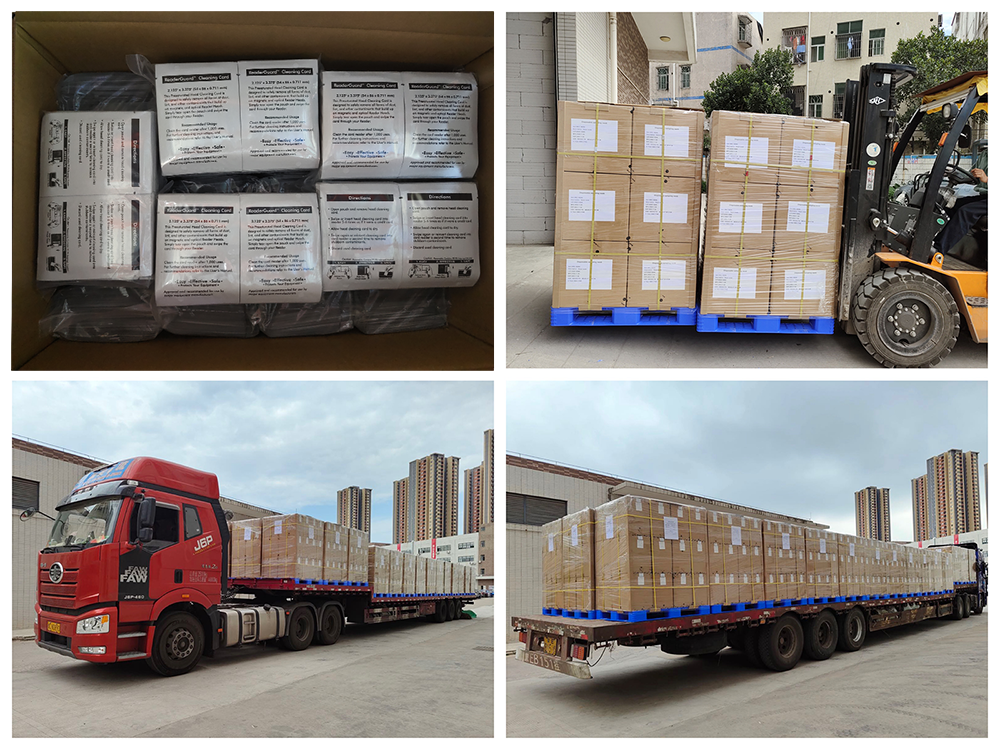
What are the use steps of card printer cleaning card ?
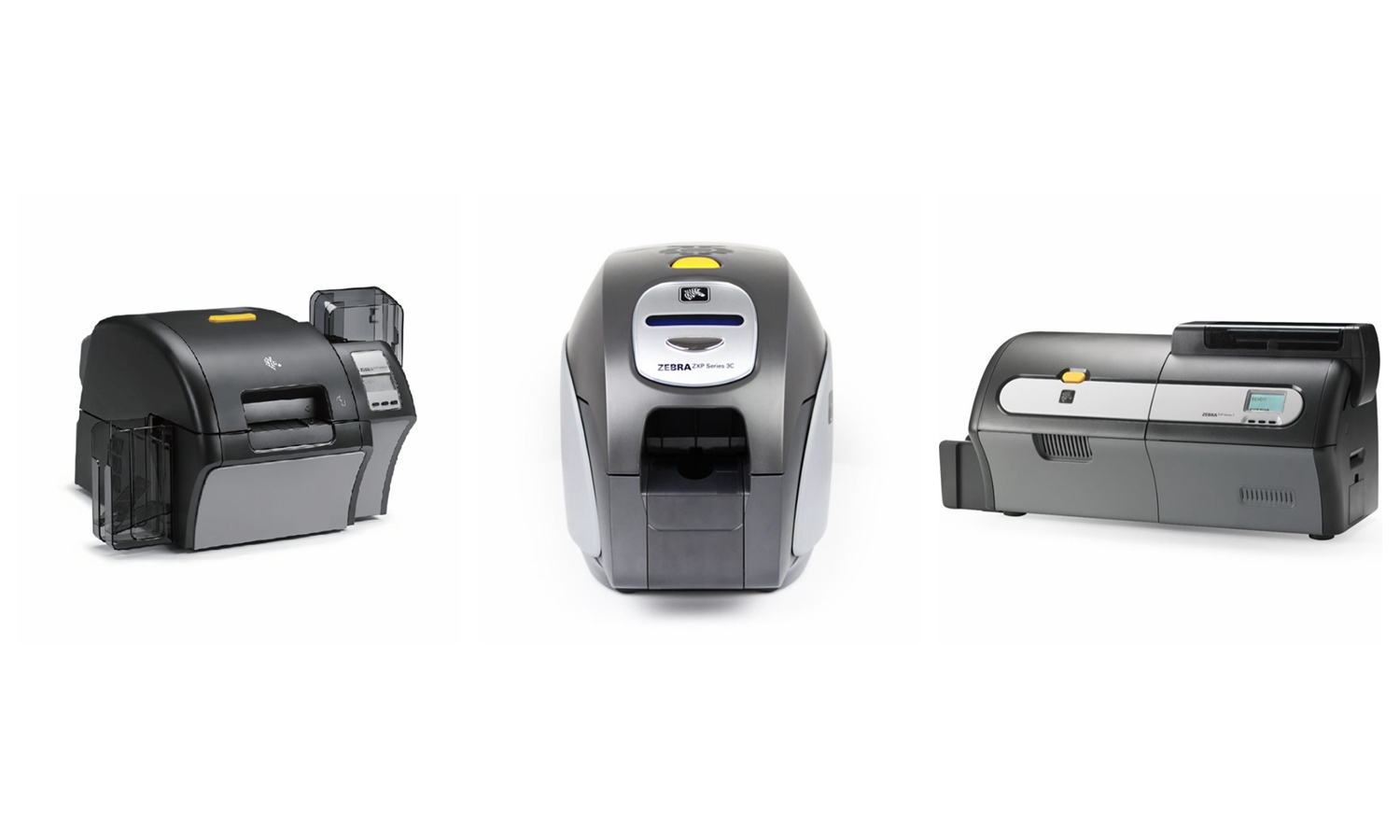
2. Click the Tools button.
3. Click the Clean button.
4. Take out the ribbon inside the printer and the card in the card box according to the prompts, close the printer cover, and then click "Yes" to execute the cleaning procedure.
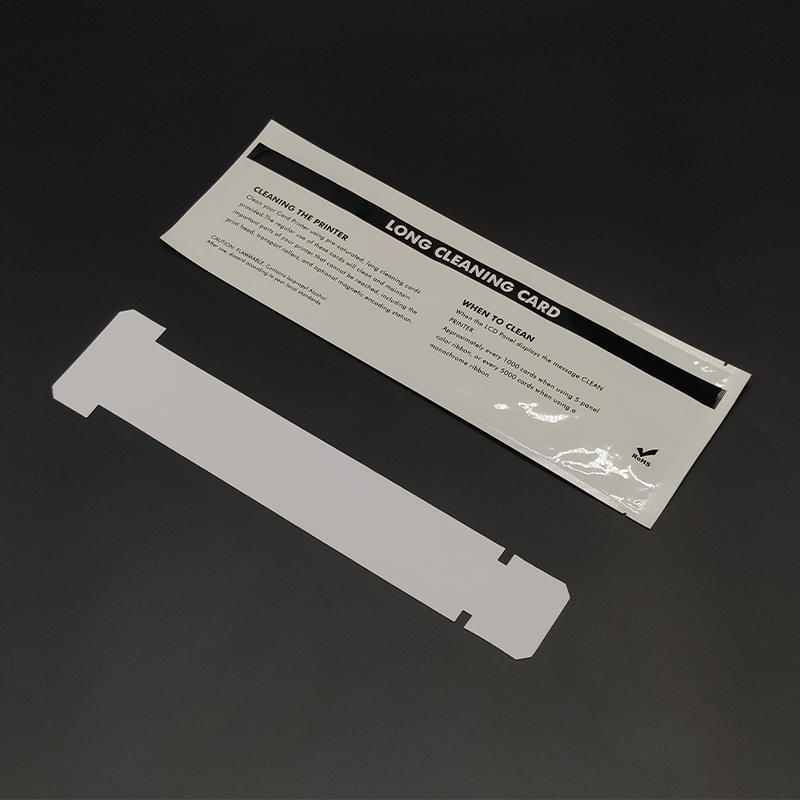
5. The printer screen displays Insert Long Cleaning Card.
6. Insert the long cleaning card into the printer from the card outlet position of the printer (if the cleaning card position is not in place, the screen will show Remove Card Button to retry), as shown in the figure.
7. If the above phenomenon occurs, pull out the cleaning card and press the button at the bottom of the screen. When Insert Long Cleaning Card appears, firmly insert the cleaning card into the printer again. The cleaning process is shown as follows.
8. After cleaning the print head and roller, the printer screen appears: Insert Feeder Cleaning Card.
9. Take out the long cleaning card and insert the short cleaning card in the card input box, as shown in the following figure. Close the printer cover and continue cleaning.
10. When Cleaning done appears on the printer, it indicates that the printer has been cleaned. Repeat several times to ensure cleanliness.
Related Products: